Myket In-App Purchase Tutorial
Myket in-app purchase is available in several ServerNet plugins such as User Account, Special Plan Upgrade, and more. You can use this tutorial in any section where you need Myket in-app purchase. Of course, note that not all these settings are required in every tool, and you should only complete the necessary items. Myket Settings: To use this tool, you must first download a version of your app and upload it to Myket.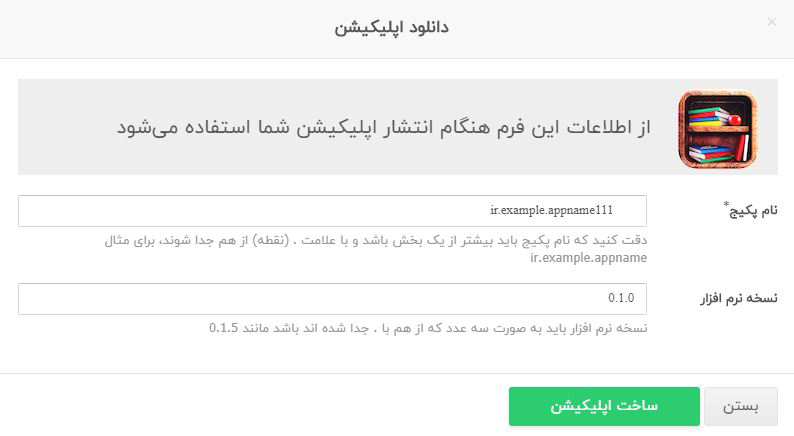 Myket In-App Purchase Tutorial
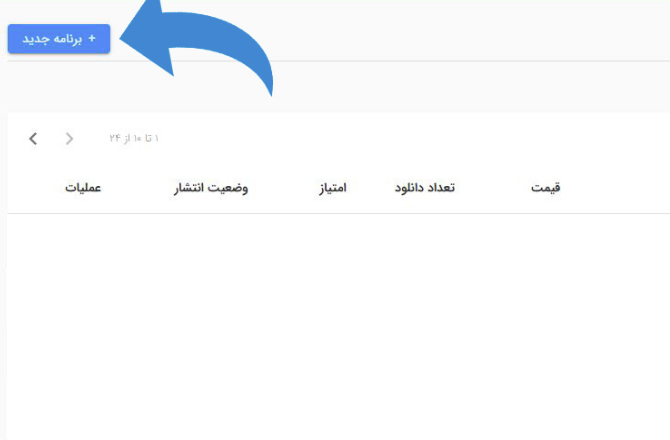
After downloading the app, log in to your developer panel on Myket.
Myket In-App Purchase Tutorial
After downloading the app, log in to your developer panel on Myket.
 Myket In-App Purchase Tutorial
Click on the "New App" button.
Myket In-App Purchase Tutorial
Click on the "New App" button.
 Myket In-App Purchase Tutorial
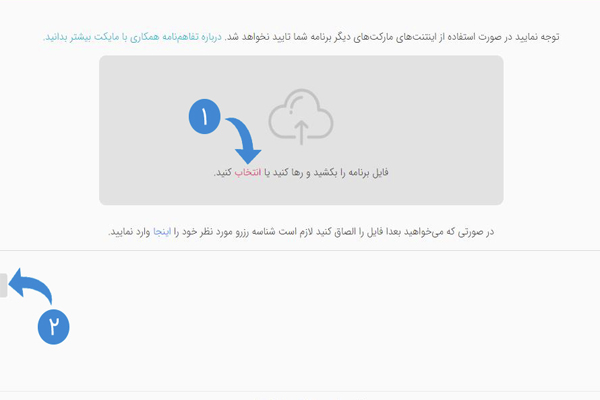
Click the "Select" button to upload the app file.
After uploading, click the "Submit" button to add the app to the Myket panel.
Myket In-App Purchase Tutorial
Click the "Select" button to upload the app file.
After uploading, click the "Submit" button to add the app to the Myket panel.
 Myket In-App Purchase Tutorial
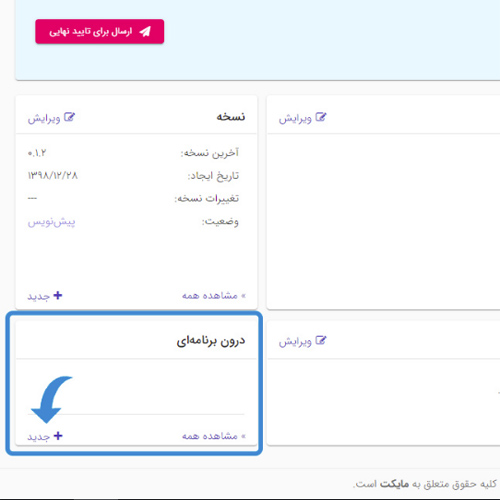
Click on the app name to enter its settings.
Myket In-App Purchase Tutorial
Click on the app name to enter its settings.
 Myket In-App Purchase Tutorial
To configure Myket in-app purchase, click the "New" button in the specified section to enter the in-app settings.
Myket In-App Purchase Tutorial
To configure Myket in-app purchase, click the "New" button in the specified section to enter the in-app settings.
 Myket In-App Purchase Tutorial
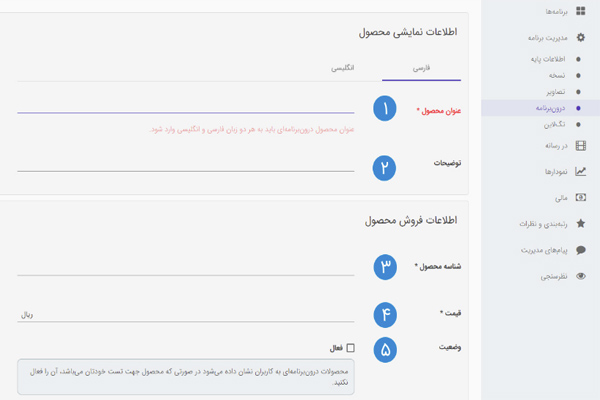
- 1. In this field, you must enter the product title. Note that this field is mandatory and must be provided in both Persian and English.
- 2. The description is for easier identification of products in the Myket panel, and filling it is optional.
- 3. Enter the product ID as a unique value; this ID will be needed in the ServerNet panel.
- 4. Set the product price in Rials.
- 5. Set the product status to active. Of course, pay attention to the notes Myket provides below this section.
- 6. Finally, click the "Save" button.
 Myket In-App Purchase Tutorial
Consider the image above:
RSA Key:
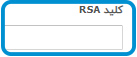
In the ServerNet panel, wherever you see the image below, you must enter the public key.
Myket In-App Purchase Tutorial
Consider the image above:
RSA Key:
In the ServerNet panel, wherever you see the image below, you must enter the public key.
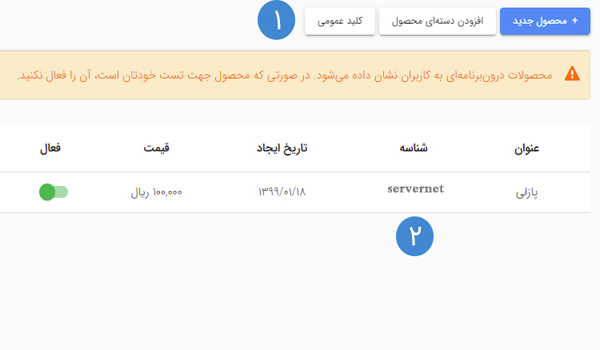
 To obtain the RSA key, click on item number 1 in the image above.
Product ID:
In the ServerNet panel, wherever you see the image below, you must enter the product ID.
To obtain the RSA key, click on item number 1 in the image above.
Product ID:
In the ServerNet panel, wherever you see the image below, you must enter the product ID.
 Take this ID from item number 2 in the image above.
X-Access-Token:
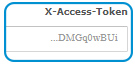
In the ServerNet panel, wherever you see the image below, you must enter the X-Access-Token.
Take this ID from item number 2 in the image above.
X-Access-Token:
In the ServerNet panel, wherever you see the image below, you must enter the X-Access-Token.
 To obtain this, go to the settings section in the Myket panel.
 Myket In-App Purchase
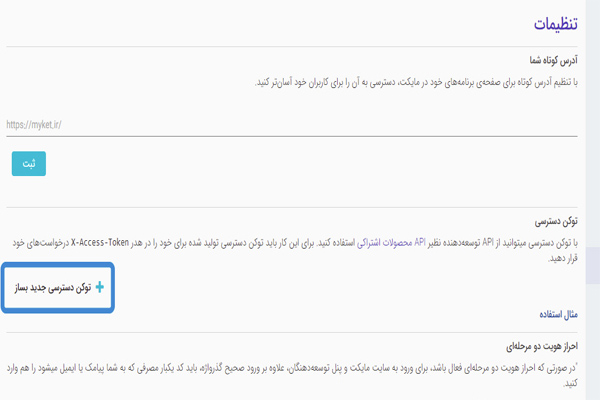
Click on the specified section to generate your access token.
Of course, pay attention to the notes Myket provides in this section.
Myket In-App Purchase
Click on the specified section to generate your access token.
Of course, pay attention to the notes Myket provides in this section.
 Myket In-App Purchase Tutorial
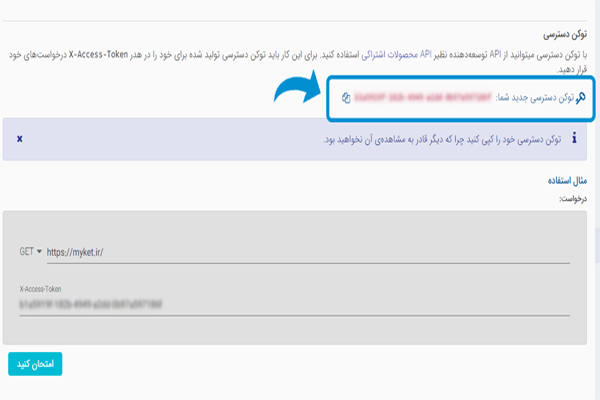
Copy the access token from the specified section and paste it into the ServerNet panel.
Your Myket in-app purchase settings for your app are now complete.
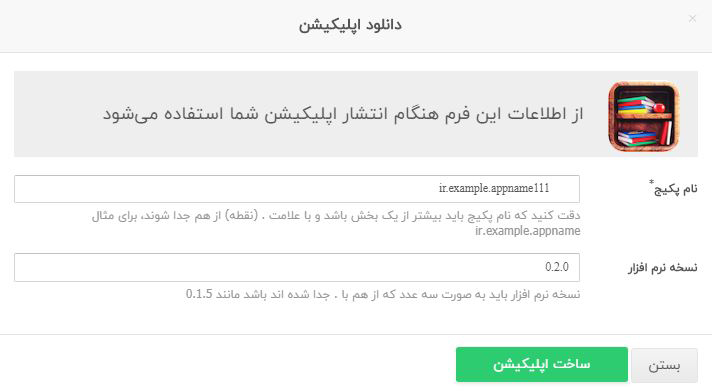
Finally, build the final version of the app and upload it to Myket for publication.
Myket In-App Purchase Tutorial
Copy the access token from the specified section and paste it into the ServerNet panel.
Your Myket in-app purchase settings for your app are now complete.
Finally, build the final version of the app and upload it to Myket for publication.
 Myket In-App Purchase
The Myket in-app purchase tutorial has ended. You can now start building your app and publishing your app with the ServerNet App Builder.
Myket In-App Purchase
The Myket in-app purchase tutorial has ended. You can now start building your app and publishing your app with the ServerNet App Builder.
Comments 0
No comments yet — be the first!